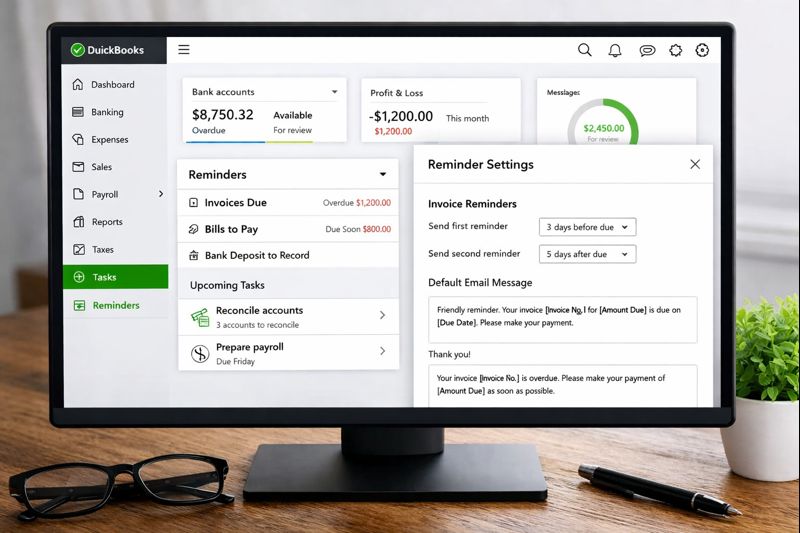
If you’re like most business owners and managers, you prefer focusing your energy on doing creative tasks, not remembering that you have the not-so-creative mundane but necessary tasks to take care of as well. In-product reminders are a great way to ensure you never miss an important task or payment. The following QuickBooks power tip comes from Intuit. Watch the video for more information.
In the QuickBooks tips video above you’ll learn how to set up reminders for recording transactions.
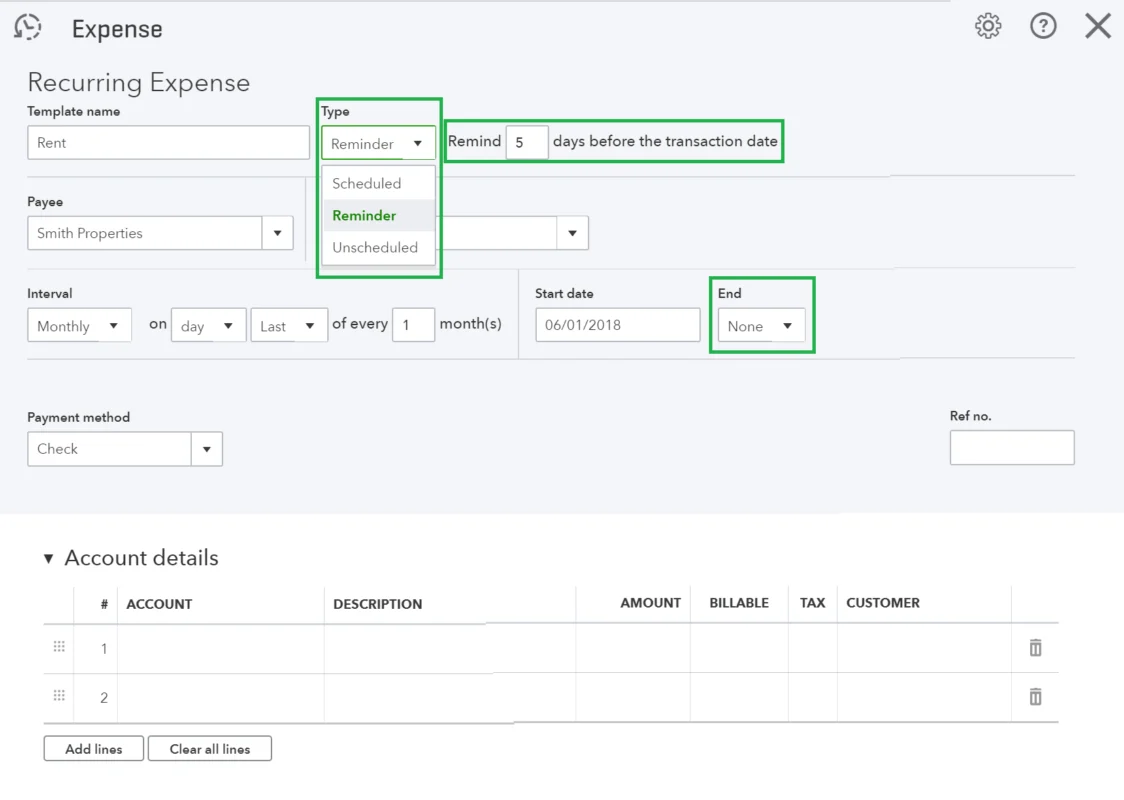
Recurring Transactions are a powerful automation feature, but sometimes you want a bit more control over exactly how or when invoices and expenses are processed. Instead of letting QuickBooks take the wheel, you can set reminders to complete these tasks yourself (Gear Icon > All Lists > Recurring Transactions > New > Transaction type > Reminder). Unlike recurring transactions, reminders make it easy to change transaction details on the fly since they aren’t permanently set. Afford yourself a reasonable amount of time to complete these tasks before they’re due – otherwise, you may have the urge to continuously roll incomplete tasks.
More reminder tips
If you want to let reminders run indefinitely, leave the end criteria set to “none.” You can also select “after” and designate reminders based on a set number of occurrences – for instance, if you have a yearly rental lease and pay monthly, set twelve occurrences and an additional reminder at the end, just in case you need to change your rental rate.
When you have five minutes to spare, get out a pen and write out a list of your daily, weekly, monthly and yearly bookkeeping tasks. Here are a few reminders we’d recommend entering into QuickBooks Online right now:
- Monthly rent – set to a monthly interval, 5 days before it’s due
- Close your books (with a password) for the year – set to a yearly interval, 10 days before it’s due (the date will depend on your business’ fiscal year)
- Bi-weekly bank reconciliations – set to a weekly interval every 2 weeks, 3 days before it’s due; the first reminder is to prepare and precheck your transactions, the second will be the actual reconciliation once you have your bank statements in-hand
- Weekly inventory review – set to a weekly interval, 1 day before it’s due
What types of reminders can you set up in QuickBooks Online?
QuickBooks Online lets you set reminders for invoices, bills, expenses, bank deposits, and other routine accounting tasks so deadlines aren’t missed.
Where do reminders appear in QuickBooks Online?
Reminders show up on the dashboard, in task lists, and through notifications depending on your settings and user permissions.
Can reminders be customized for different users?
Yes. Reminders can vary by role, allowing business owners, bookkeepers, and accountants to see only the tasks relevant to them.
Do reminders send automatic emails to customers?
Invoice reminders can be automated to email customers before or after due dates. Internal task reminders stay within QuickBooks Online.
Are reminders available on the mobile app?
Many reminders and notifications are accessible through the QuickBooks Online mobile app, though some setup steps are best handled on desktop.